

Manage your posts in Content
Find any post, see how it did, and edit, archive, pin or delete it.
- Who can do this:
- Owner · Admin · Marketer
- Plan:
- Every plan, including Free
- Last updated:
Steps
- Step 1:
Open Content and choose a tab: Posts, Reels, Khawater or Stories.
- Step 2:
Use Search captions, Status and Sort by to find what you need. Switch the Layout between Grid and Table.
- Step 3:
Select a post to open its Insights: views, likes, comments, shares and saves.
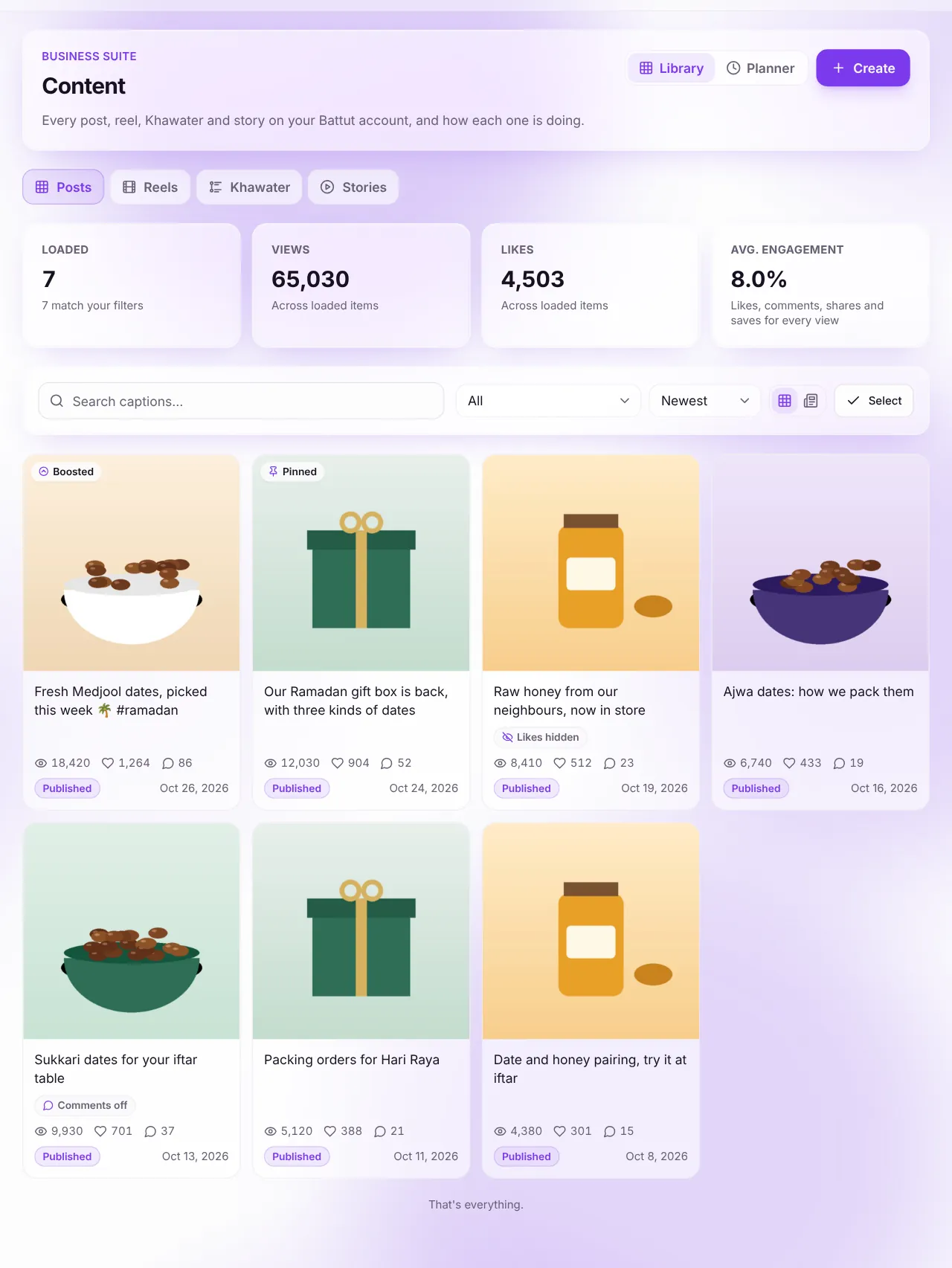
Screenshot:Content lists everything on your account.Sample business and numbers. Your screen shows your own. - Step 4:
Under Manage, choose Edit caption, Archive, Pin to profile, Copy link or Delete.
- Step 5:
To delete several at once, choose Select, tick the posts and select Delete selected.
What happens next
- Archived posts are hidden from your profile and feeds until you choose Unarchive.
Common questions
What does Avg. engagement mean?
Likes, comments, shares and saves for every view, averaged across the posts loaded. See Results on Home and Content.
Related articles
- Hide like counts and turn off commentsChoose, post by post, whether others see likes and whether people can comment.
- Understand Home and Content numbersWhat followers, views, likes and engagement mean, and how far back you can see.
- Boost a postShow one of your posts, reels or Khawater to more people, paid in BT.
Was this article helpful?