

Schedule a post or reel
Pick a date and time, and your post goes live on its own.
- Who can do this:
- Owner
- Plan:
- Every plan, including Free
- Last updated:
Scheduling is free on every plan. A scheduled post stays hidden until its time, then goes live like any other post.
Before you start
- You are signed in as the owner. Scheduled posts stay hidden on the owner’s account, so only the owner can see and change them.
Steps
- Step 1:
Open Create and prepare a Post or Reel as usual.
- Step 2:
Under When to publish, choose Schedule.
- Step 3:
Pick the Date and Time. Times are in your own time zone, from 10 minutes to 60 days ahead.
- Step 4:
Under Post settings, turn on Hide like count or Turn off commenting if you want.
- Step 5:
Select Schedule post or Schedule reel.
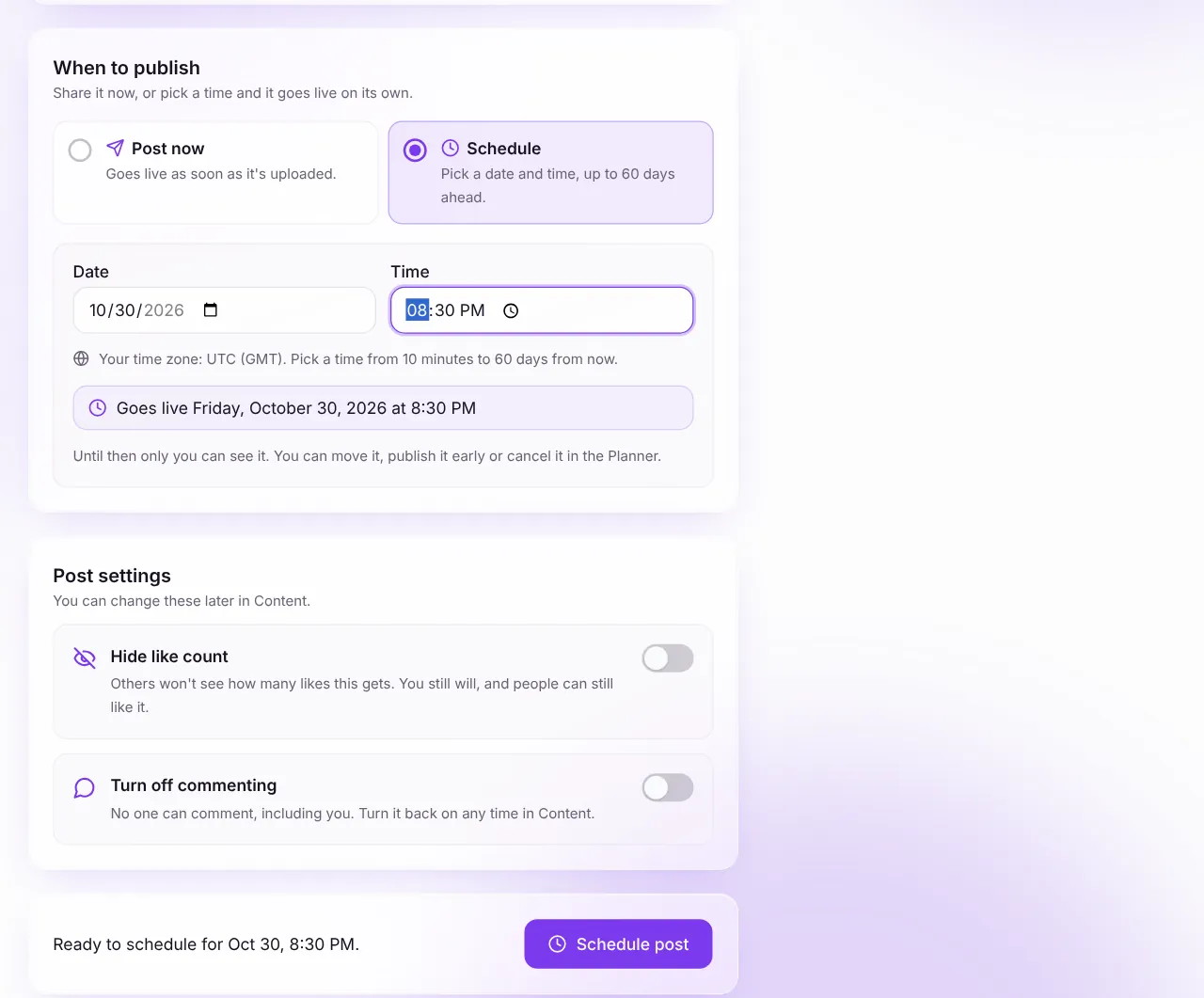
Screenshot:Choose Schedule, then a date and time.Sample business and numbers. Your screen shows your own. - Step 6:
To change it later, open Content and choose Planner. Select the post, then choose Reschedule, Publish now or Cancel post.
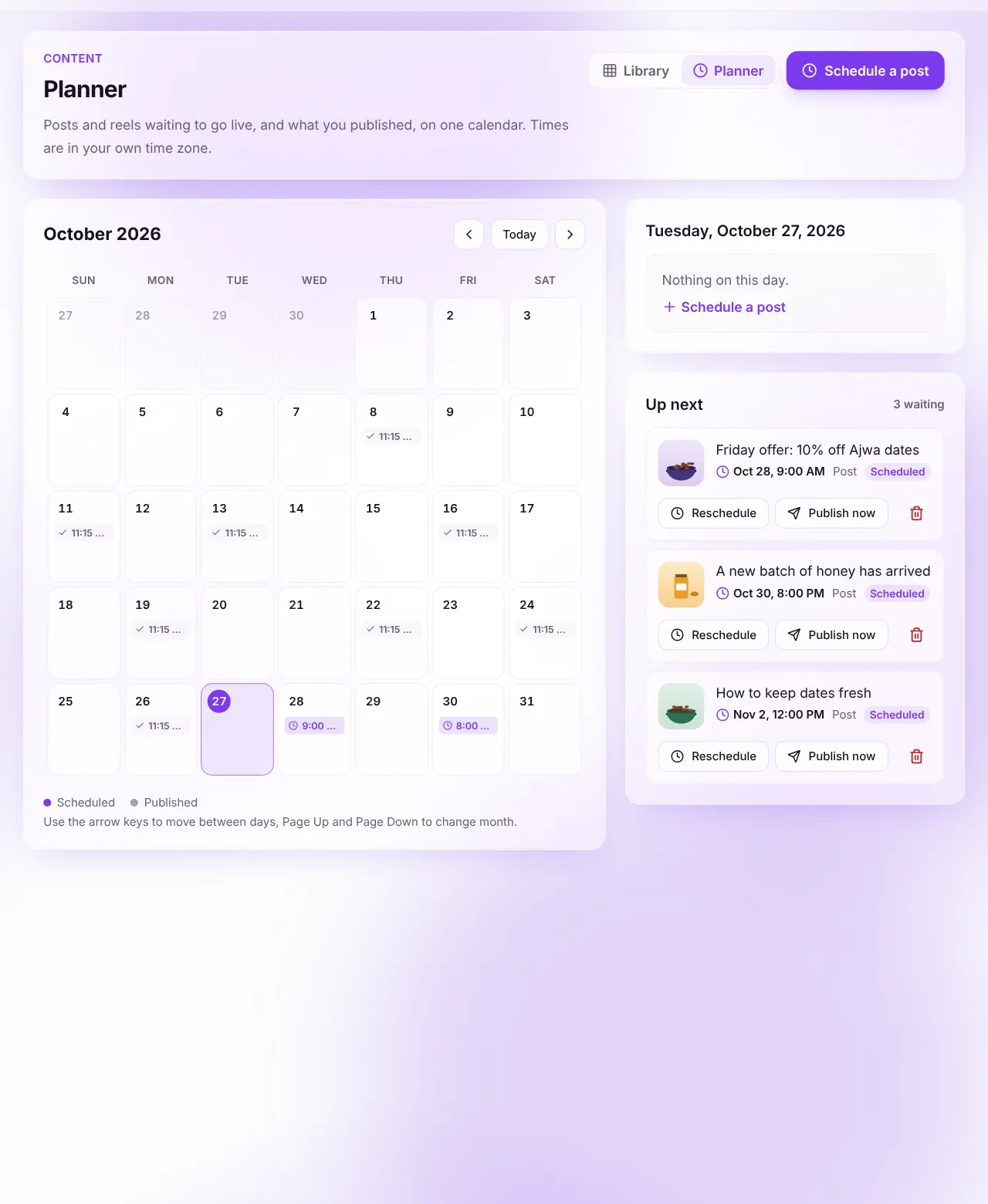
Screenshot:The Planner shows what is waiting to go live.Sample business and numbers. Your screen shows your own.
What happens next
- Your post shows as Scheduled in Content and the Planner until it goes live.
- At the time you chose, it becomes public and reaches your followers’ feeds.
- If it needs a quick review first and isn’t cleared by then, it goes live as soon as it is.
Common questions
Why is my scheduled post On hold?
It didn’t go live, for example because its upload didn’t finish. Open it in the Planner and pick a new time, or choose Publish now.
Can I boost a scheduled post?
Not yet. Scheduled posts can be boosted once they are published.
Related articles
- Share a post, reel or KhawaterPublish photos, a video or a short written thought from the portal.
- Hide like counts and turn off commentsChoose, post by post, whether others see likes and whether people can comment.
- Manage your posts in ContentFind any post, see how it did, and edit, archive, pin or delete it.
Was this article helpful?