

Share a post, reel or Khawater
Publish photos, a video or a short written thought from the portal.
- Who can do this:
- Owner
- Plan:
- Every plan, including Free
- Last updated:
Everything you share from the portal goes through the same checks as the app and appears on your profile and in your followers’ feeds.
Before you start
- You are signed in as the owner. New posts upload media from the owner’s own Battut account, so team members can’t publish from Create.
Steps
- Step 1:
Open Create in the sidebar.
- Step 2:
Under What do you want to share?, choose Post for photos, Reel for one video or Khawater for text.
- Step 3:
Drag your photos or video onto the page, or select Choose photos or Choose a video. Battut checks size, length and its content standards before anything uploads.
- Step 4:
Write a Caption. Add a location and tag people if you like.
- Step 5:
Under Audience, keep Everyone or limit it to sisters or brothers only.
- Step 6:
Check the Preview, then select Share post, Share reel or Post Khawater.
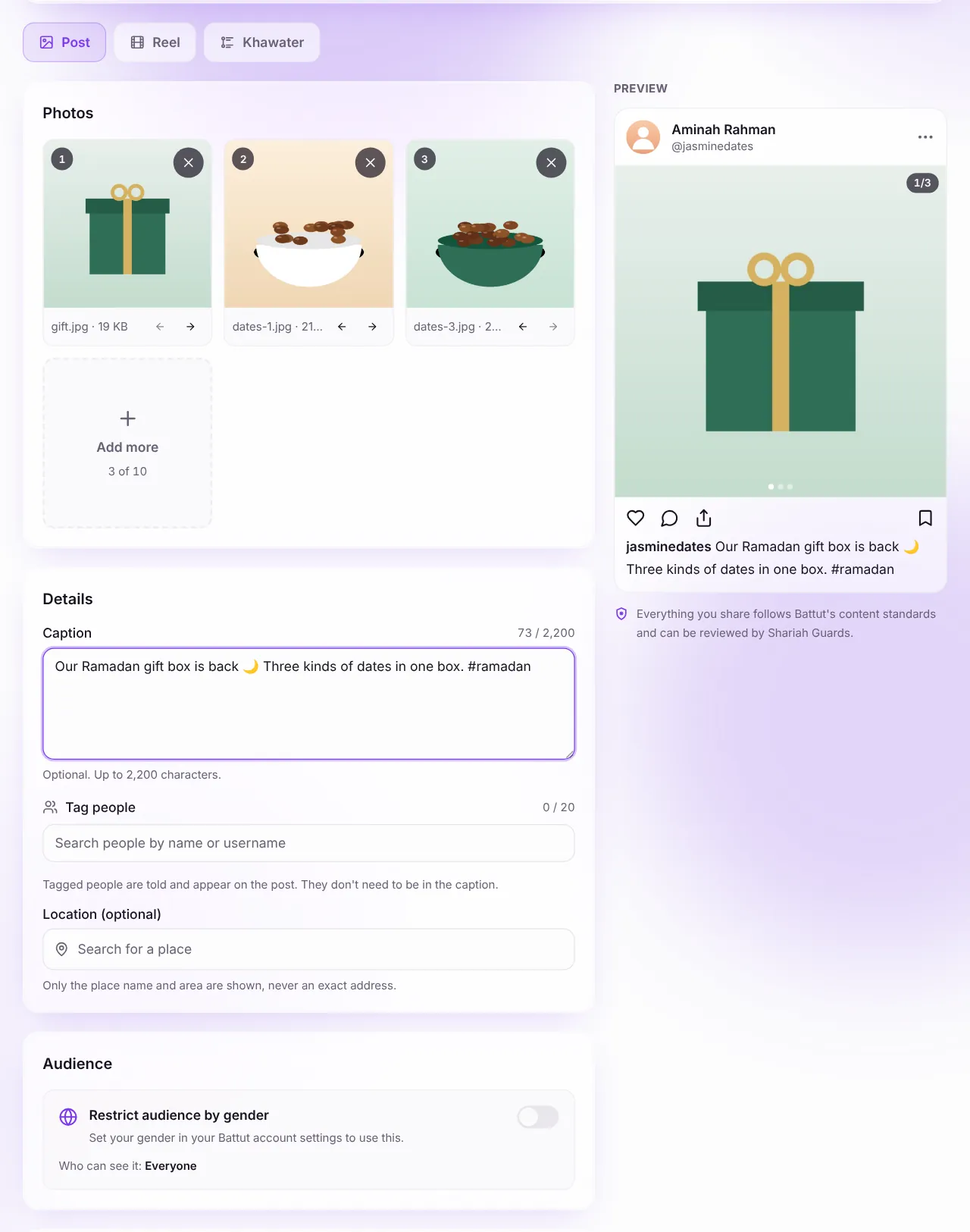
Screenshot:The preview shows how your post will look in the feed.Sample business and numbers. Your screen shows your own.
What happens next
- Your post goes live and you can Boost it right away from the success screen.
- If some media couldn’t be checked on your device, the post is Sent for review first. Only you can see it until it’s cleared.
Common questions
Can I post a story from the portal?
No. Stories are posted from the Battut app. They still show in Content so you can see how they did.
Can I edit a post after sharing it?
You can edit the caption, archive, pin or delete it from Content. Photos and video can’t be swapped.
Related articles
Was this article helpful?